The Constituent Deletion tool permanently removes constituent records from your VMS. This process deletes the constituent data while leaving associated volunteer records intact.
As a reminder, excluding rows from your daily Constituent File sent via SFTP for import does not remove the constituents from your VMS. You must use the Constituent Deletion tool to remove constituents.
What gets deleted when you remove constituents
When using the Constituent Deletion tool, prominent warnings explain what is permanently deleted and what can be restored by a future import. These warnings appear on the upload panel (Data Management > Remove Constituents) before you upload a CSV and on the Preview Changes screen above the Remove Constituents button. Both warnings use the heading "Removing constituents deletes far more than the constituent record."
Permanent deletions
The following items are permanently removed and cannot be recovered by a future import:
- Volunteer notes, emails sent through GiveCampus, and assignment history. (Because these items are generated within GiveCampus rather than imported, they cannot be restored.)
Detailed deletions (Preview Changes screen)
The Preview Changes screen provides a detailed list of deletions, including:
- Volunteer notes (including logged gift and non-gift conversations)
- Emails sent through GiveCampus, including any that are still scheduled
- Gift history (including summaries and details)
- Segment codes, affiliations, giving societies, degrees, activities, and relatives
Other important behaviors
- Although assignments remain, their history is cleared, so you will not see previous assignment details.
- Removed constituents immediately drop out of your cohorts and cohort counts. If re-imported later, they will appear as new records and must be rebuilt into cohorts.
- Volunteers keep their accounts and platform access, but any volunteer paired with the removed constituents will be unpaired. If a volunteer’s own constituent record is removed, their account remains but is no longer linked to any constituent record.
- All other data returns on the next import, except for records that have not changed in your CRM.
Practical guidance
- Export any data you need to retain before uploading.
- The Preview Changes screen only appears when at least one constituent is in your upload.
Confirmation dialog
After reviewing the Preview Changes table, click Remove Constituents to proceed. If you choose this option, a confirmation dialog titled "Remove these constituents?" appears, stating: "This permanently deletes their volunteer notes, emails sent through GiveCampus, gift history, and assignment history." Confirming will remove the constituents from your VMS within 15–30 minutes.
1. Navigate to your VMS > Data Management > Remove Constituents. Please note: Only school administrators with "Full" permissions can access the "Data Management" page.
2. Click “Choose File” to upload a CSV of the constituents you’d like deleted. The CSV should include only one column with the constituent ID numbers listed. Please use the following column header: constituent_id
3. Once you have uploaded a file, click “Review Changes.”
Summary tiles at the top of the review page include the following information:
- Total Constituents: Total # of constituents you uploaded for removal
- No Name Constituents: # of constituents that are “No Name” records. For more information on “No Name” records, head to Data Management > No Name Records.
- Assigned Constituents: # of constituents that are assigned to volunteers
- Volunteer Constituents: # of constituents that currently also have a volunteer record in the system.
The review page will list the Constituent ID, Constituent Name, Preferred Class Year, Assignment Status and Volunteer Status of each constituent you uploaded.
- Assignment Status will note if a constituent is currently assigned to a volunteer. If you proceed with deleting this constituent, they will become unpaired from any volunteers who are assigned to them.
- Volunteer Status will note if the constituent currently also has a volunteer record in the VMS. The Constituent Record and Volunteer Record are stored separately within the system, so you can delete the Constituent Record without affecting the Volunteer Record or the volunteer’s access to the VMS.
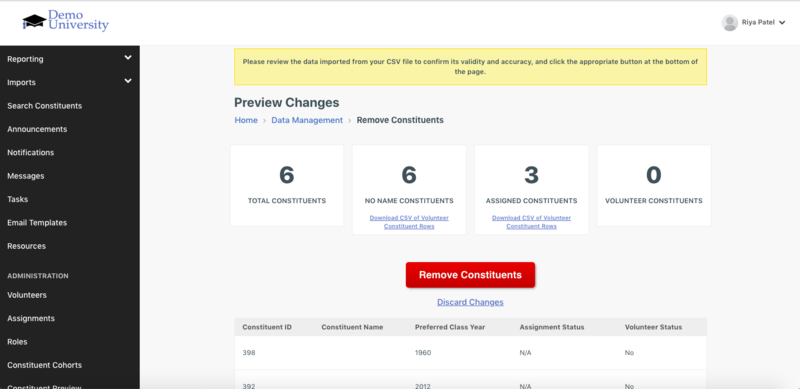
4. Once you have reviewed the table of changes, click “Remove Constituents” to continue with the constituent deletion, or “Discard Changes” if you’d like to make adjustments to your CSV and try again. If you choose “Remove Constituents”, the constituents will be removed from your VMS within 15-30 minutes.
Tip: Click the "View Previous Uploads" link next to the "Review Changes" button to view the history of your past uploads.
Comments
0 comments
Article is closed for comments.