Before your volunteers create their account, you will first want to add them as a Volunteer in your GiveCampus Volunteer Management environment. For more information about adding Volunteers click here.
Creating an Account to Sign Up
- Go to www.givecampus.com/schools/SCHOOLNAME/signup
- Sign up for an account using the email address that has been loaded into GC VM for the volunteer.
- Note: This will be the email address you used to create their Volunteer Record.
- The Volunteer will receive an email from GiveCampus at the specified email address. They should click the link in this email to verify their account.

*Note: Staff members who serve as volunteers and administrators must create separate accounts (using different email addresses) for accessing GC VM as a volunteer vs. as an administrator. Accessing GC VM with an account that is set up as both an administrator and a volunteer can causes errors and will result in an unusual “blended” experience. Additionally, actions taken by the user may be logged as either administrator actions or volunteer actions.
Logging in
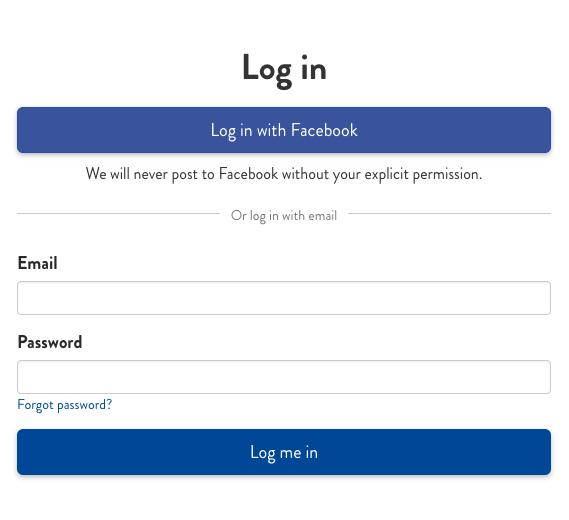
- Once the Volunteer's account has been created, they can log in to GiveCampus by going to www.givecampus.com/schools/SCHOOLNAME/login
- They should log in with the email address and password combination they created when signing up. If they have forgotten their password, they can click "Forgot password?" and follow the prompts to reset their password.
- At any time once they are logged into their account, they may wish to take advantage of the “Connect Facebook” option, which . If choosing this option, they will be able to log in with their Facebook account in the future.
You will see this option displayed in the navigation bar at the top of the screen when using GC VM as a Volunteer.
Change your password and sign out from Settings
Volunteers can update their password and end their session directly from the volunteer portal’s Settings page—no password-reset email needed. These options are available in the Login & Security section, located below the Profile section (which displays your name and email).
What you’ll see in Login & Security
- Three password fields labeled exactly: "Current password", "New password", and "Confirm new password".
- Guidance below the "New password" field outlining the requirements: at least 12 characters, including 1 uppercase letter, 1 lowercase letter, 1 number, and 1 symbol.
- An action button labeled "Update Password" (it changes to "Updating…" while processing).
- A separate "Sign Out" button to end your session.
How to change your password
- Open Settings and scroll to the Login & Security section.
- Enter your current password in the "Current password" field.
- Enter your new password in the "New password" field and confirm it in "Confirm new password." Ensure your new password meets the requirements.
- Click Update Password.
- When successful, the form clears and you’ll see a confirmation message: "Your password has been updated." If there’s an error, an inline message will indicate the issue so you can correct it.
How to sign out
- In the Login & Security section, click the Sign Out button.
- A confirmation dialog titled "Sign out?" will appear, asking: "Are you sure you want to sign out of [institution]?" Choose Sign Out to end your session or Cancel to remain logged in.
Notes and reminders
- These options are available in the volunteer portal’s Settings page, not in the administrator dashboard.
- After updating your password, the form fields clear, allowing you to continue using the portal with your new credentials immediately.
- If you encounter an error when updating your password, verify your current password and confirm that your new password meets the requirements, then try again.
Common Account Issues and Troubleshooting
Verification Email Not Received
Problem: Volunteer created an account but never received the verification email needed to complete signup and access the confidentiality agreement. Solution:1. Check your spam/junk folder for emails from GiveCampus
2. Add support@givecampus.com to your safe sender list
3. If still not received, contact your school administrator who can request manual account verification from GiveCampus support
Password Reset Issues
Problem: Unable to reset password or password reset emails not being received. Troubleshooting steps:1. Verify you're using the correct email address (Volunteers can have different login emails from the email shown to admins in the VM portal. If a user is having trouble logging in, have them check if there is another email address they may have used in the past for login)
2. Check spam/junk folders for the reset email
3. Wait a few minutes between reset attempts to avoid being temporarily locked out
If these steps don't resolve the issue, contact your school administrator who can check if your account is locked and request assistance from GiveCampus support.
FAQ — Changing a volunteer's email address
Q: I updated the Email on a volunteer's VMS record. Does that change the email they use to log in to GiveCampus?
A: No. There are two separate email values:
-
Email on the Volunteer Record: The value administrators edit at:
https://www.givecampus.com/vms/[SCHOOLNAME]/admin/volunteers/[VOLUNTEER_ID]/edit - Email on the volunteer's GiveCampus account: The address the volunteer uses to sign in.
Changing the email on the Volunteer Record updates only the VMS record; it does not change the login email. When the two emails match, GiveCampus automatically links the Volunteer record to the GiveCampus account. Specifically:
-
Auto-link at email confirmation: If a Volunteer record is unlinked (shows "Not Signed Up Yet") and a volunteer creates and confirms a GiveCampus account at
https://www.givecampus.com/schools/SCHOOLNAME/signupusing the same email as on the Volunteer Record, the system links them upon confirmation. - No automatic relink for an already-linked account: If the Volunteer record is already connected to a GiveCampus account, changing the email in the record does not update the linked account.
Q: How do I change the login email if a volunteer already has a GiveCampus account under the old email?
A: Follow these steps:
- Ask the volunteer to create a new GiveCampus account using their desired email at
https://www.givecampus.com/schools/SCHOOLNAME/signupand confirm it via the verification email. - Once confirmed, contact GiveCampus support to have the Volunteer record relink to the new account. Only GiveCampus staff can update the account link.
Q: What if the volunteer already has a GiveCampus account (for example, from Online Giving) under a different email than the one on the Volunteer Record?
A: In this case, the Volunteer record and the GiveCampus account remain unlinked since the emails do not match. You can:
- Have the volunteer sign up for a GiveCampus account using the email on the Volunteer Record. The account will auto-link upon confirmation if there is no existing link.
- Alternatively, have the volunteer create a new account using their preferred email and then contact GiveCampus support to relink the Volunteer record to the new account.
Admin note — editable fields on the Volunteer Record edit page:
Administrators can update fields such as Email, Full Name, Assignment Limit, Class Year, and Deactivation Date at https://www.givecampus.com/vms/[SCHOOLNAME]/admin/volunteers/[VOLUNTEER_ID]/edit. Remember, changing the Email field here affects only the VMS record; it does not update the email on the volunteer's GiveCampus login account.
Q: Quick troubleshooting checklist
- Verify the email listed on the Volunteer Record by opening its edit page.
- Ask the volunteer which email they use to sign in to GiveCampus.
- If the volunteer does not have a GiveCampus account, have them sign up at
https://www.givecampus.com/schools/SCHOOLNAME/signupusing the email on the Volunteer Record and confirm their account; the record will auto-link upon confirmation. - If the volunteer has an existing account but needs to use a different login email, ask them to create a new account with the desired email, confirm it, and then contact GiveCampus support to relink the Volunteer record.
- After relinking, confirm that the volunteer can sign in to the VMS portal and see their assignments.
Why this matters:
Ensuring the Volunteer Record email matches the GiveCampus login email prevents activation errors, avoids SSO mismatches, and enables auto-linking on confirmation. If a volunteer cannot sign in after these steps, re-check for typos, advise them to clear their browser cache or use incognito mode, and repeat the checklist.
SAML/SSO Login Redirecting to Wrong Page
If you successfully authenticate with your institution's SSO but get redirected to the main GiveCampus page instead of your volunteer portal:
FAQ — "New administrator and volunteer signups are not currently permitted. Please contact an administrator."
Q: Why do some users see the error "New administrator and volunteer signups are not currently permitted. Please contact an administrator."?
A: This error appears when someone visits the admin-specific signup URL, which includes the /admin/ segment:
https://www.givecampus.com/schools/SCHOOLNAME/admin/signup
For schools using SSO (SAML), this URL is restricted so that new accounts cannot be created through it. The regular volunteer/staff signup URL remains available.
To resolve the error:
-
Use the plain signup URL: Remove the
/admin/segment. The correct link is:https://www.givecampus.com/schools/SCHOOLNAME/signupReplace
SCHOOLNAMEwith your school’s identifier. -
Verify the URL: If a user encounters the error, confirm they accessed a URL containing
/admin/and instruct them to try the plain signup URL instead. -
Account linking: After signing up using the plain URL and confirming the verification email, GiveCampus will automatically link the new account to any matching administrator record (based on email).
Deep troubleshooting for complex SAML/SSO login problems
If a volunteer completes your institution's SSO sign‑in but is redirected to the wrong domain or can’t access the volunteer dashboard (for example, landing on a community site or getting stuck in a redirect loop), follow these steps:
1) verify volunteer account and SAML response
- The SAML handshake uses either the email address or the SAML unique identifier (saml_id) based on your IdP configuration.
- Ensure the email on the volunteer record exactly matches the email sent by the IdP. Matching is case‑insensitive, but the text string must align with the IdP value.
- If your IdP uses saml_id, confirm that the volunteer record has the correct saml_id value.
2) clear browser cache and address cross‑domain authentication issues
- Cached cookies or authentication states from other GiveCampus schools or branded domains can cause incorrect redirects. Clear cookies and site data for givecampus.com (and any related domains) to minimize interference.
- Test the sign‑in in a private/incognito browser window. If sign‑in succeeds there, the issue likely involves stale cache or session data.
- If the browser shares authentication data across domains, sign out of all GiveCampus sessions before trying again.
3) check the volunteer record in the GiveCampus admin UI
-
Open the volunteer’s admin edit page: https://www.givecampus.com/vms/[SCHOOLNAME]/admin/volunteers/[VOLUNTEER_ID]/edit
-
Confirm that the Email field matches the email the IdP sends in the SAML response.
-
If using a separate SAML identifier, verify that the saml_id field is correctly populated.
-
Note: GiveCampus checks authentication for both system and unit schools when a volunteer belongs to a unit school.
4) reproduce the error and capture key details
When reproducing the problem, record:
- The browser and device used (e.g., Chrome, Firefox, Safari on desktop or mobile).
- Whether the issue occurs in a private/incognito window.
- The URL displayed after SSO completes (this can indicate which branded domain is handling the redirect).
- Whether the volunteer has roles at multiple schools, as multi‑institution accounts may route to different dashboards.
5) if email and saml_id appear correct
- Confirm that the IdP’s unique identifier format matches what GiveCampus expects. Some IdPs use different attribute names for email and persistent identifiers.
- Verify that the IdP sends the email attribute in the same format as the volunteer record (for instance, a campus email versus a personal email).
6) common administrator fixes
- Update the volunteer record so the Email field exactly matches the email attribute sent by the IdP (or populate the saml_id field if applicable).
- Advise volunteers to clear their browser cache or use a private window to avoid stale authentication data from other domains.
7) quick checklist summary for support handoff
- If the volunteer fails even in incognito mode, save the browser trace and the redirect URL.
- Check if the admin edit page shows the same email the IdP provides. If not, update the record or have the volunteer sign up with the correct email.
- If issues persist, collect the redirect URL, browser details, and a timestamp of the failure to share with your IdP team for further inspection of the SAML assertions.
notes and common pitfalls
- Because GiveCampus may use email or a separate saml_id for lookups based on your IdP settings, switching the identifier requires coordinated updates to volunteer records and IdP mapping.
- Volunteers with multiple accounts (administrator and volunteer) should use separate login emails to prevent SSO mismatches and unexpected redirects.
If these steps do not resolve the issue, compile the details from step 4 and share them with your institution’s IdP administrator to review the SAML assertions sent during the sign‑in attempt.
Common causes:
- Multiple school affiliations with different SAML configurations
- Email address mismatch between SSO and volunteer account
- Cached authentication data from other school logins
Troubleshooting steps:
- Verify your email address - Ensure your SSO login email exactly matches the email address associated with your volunteer account
- Check SAML Unique Identifier - Contact your school administrator to verify this field is properly configured
- Clear authentication cache - Log out of all GiveCampus sessions and clear browser data
- Contact school administrator - They may need to verify your volunteer account configuration
Account Lockout Issues
If there are too many failed login attempts to GiveCampus, we'll lock the account. To unlock the account use the password reset option to update your password and verify your email address.
Troubleshooting: "Invalid email address" during account activation
If a volunteer encounters an "Invalid email address" error during account activation, follow these steps:
-
Confirm the volunteer's email: Verify that the email they are using matches the one on their Volunteer record. Mismatched emails are a common source of activation issues.
-
Check for existing accounts: If the volunteer can sign in to an existing GiveCampus account, have them use the Edit Profile option to ensure that the email on their User account matches their Volunteer record.
-
Create a new account if needed: If the volunteer cannot sign in and the email on the Volunteer record is correct, have them create a new GiveCampus account using that email, then update the Volunteer record so both emails match.
Questions to ask the volunteer:
- Did the error occur during the signup form or when clicking the verification link?
- Have you checked your spam or junk folder for the verification email?
- Are you signing in with the email listed on your Volunteer record?
Multi-Institution Access
Problem: Volunteer has roles at multiple schools and is having trouble switching between institutions. Solution:1. After logging in, click your name in the top right corner of the screen
2. You should see a dropdown menu listing all schools where you have volunteer access
3. Select the school you want to work with
4. The dashboard will refresh to show the correct institution's data
Note: If you don't see multiple schools in the dropdown menu, contact the administrators at each school to ensure your volunteer accounts are set up with the same email address.Multiple accounts or emails: accessing your volunteer portal
Use the correct email to sign in; otherwise, your Volunteer Management (VM) dashboard will not display.
- Each volunteer account is tied to a specific email address.
- You must log in with the email address used to create your volunteer record.
- Multiple GiveCampus accounts won’t provide VM access unless the login email matches your volunteer record.
- The email on your volunteer record must be the one you use to access VM.
Troubleshooting multiple GiveCampus accounts
- Log out if you are currently signed in and do not see your volunteer tools.
- Visit your school's login page:
www.givecampus.com/schools/SCHOOLNAME/login. - Sign in with the email on your volunteer record (this is typically the email that received your volunteer invite).
- If you do not remember the password for that email, click "Forgot password?" and complete the reset process for that address.
- If you continue to see the wrong dashboard, repeat these steps with your other email address(es) until you sign in with the one on your volunteer record.
Planning to use a different email in the future? VM access follows the email on your volunteer record. Update your record with your preferred email and use that address when signing in.
FAQ: Volunteer shows as unregistered even though they created an account
Q: A volunteer created a password and can use GiveCampus immediately, but in the admin Volunteers list they still appear as unregistered. Why?
A: This occurs because the volunteer's account is unconfirmed. Although a GiveCampus account is created when they sign up, the account remains unconfirmed until the volunteer clicks the verification link in the registration email. The volunteer record is linked to a user account only after confirmation.
What you'll see in the admin UI
The Volunteers list indicates status with one of the following:
- Volunteer Registered – the record is linked to a confirmed GiveCampus account.
- Last emailed on [date] – a registration email was sent, but the volunteer has not yet clicked the verification link. A Re-send e-mail button appears next to the row.
- Send registration e-mail button – the volunteer has never been emailed.
Even if the volunteer is signed in, the Volunteers list shows them as unregistered until they complete the confirmation step.
How an administrator can resolve this
- In the Volunteer Management admin left navigation, click the Volunteers link under the Administration section.
- Locate the volunteer's row:
- If it shows Last emailed on [date], click the Re-send e-mail button.
- If the volunteer has never been emailed, click the Send registration e-mail button.
- You can also use the bulk email options at the top of the page:
- E-mail to New Unregistered Volunteers – sends to volunteers who have never been emailed.
- Re-send E-mail to Existing Unregistered Volunteers – resends to those who have been emailed but haven't confirmed (this bulk option skips volunteers emailed within the past 24 hours).
- Ask the volunteer to open the verification email, click the link, and complete the confirmation step. Once done, the status will change to Volunteer Registered.
Notes
- Until a volunteer confirms, their record remains unlinked and appears as unregistered, regardless of an active session.
- If the volunteer does not receive the email, follow the earlier steps in this article under Verification Email Not Received (check spam, add support@givecampus.com to safe senders, resend from the Volunteers page).
FAQ: Volunteer has two GiveCampus accounts / conflicting emails – admin steps to resolve
Q: A volunteer’s assignments are linked to one GiveCampus account, but they are logging in with a different email. The self-service update fails because the preferred email is already in use. How can an administrator fix this?
A: Administrators can update the email on the volunteer record via the admin edit form so it matches the GiveCampus account the volunteer is using. Once the record’s email matches a confirmed user account and no user link exists, GiveCampus will automatically link the two and update the Volunteers list status to Volunteer Registered.
Note: Volunteers can update their email via the Edit Profile page in the volunteer portal, but if the new email is already in use by another GiveCampus account, the update will fail. In that case, an administrator must adjust the volunteer record directly.
Step-by-step: Resolving an Email/Account Mismatch
- In the Volunteer Management admin left navigation, click the Volunteers link under the Administration section.
- Click the volunteer’s name to open their record, or go directly to their admin edit page:
https://www.givecampus.com/vms/[SCHOOLNAME]/admin/volunteers/[VOLUNTEER_ID]/edit
- In the Email field, enter the volunteer’s current working email address (the one they’re using to log in).
- Save the record. If no user account was previously linked, GiveCampus will automatically connect the record to the confirmed user, updating the status to Volunteer Registered.
Important: If the volunteer record already has a linked user account (i.e., it was registered under the old email), the above steps update the record email but do not change the linked account. In such cases, contact GiveCampus support for a merge or relink.
If the volunteer has lost access to the old email
- Update the Email field on the volunteer record as outlined above.
- The volunteer should then sign in with the new email or use Forgot password? to set a new password. Once the record is linked to a confirmed user, registration will be complete.
Other considerations
- Volunteers serving dual roles (administrator and volunteer) must use separate email addresses to avoid login and permission issues.
- After an admin-side email change, remind the volunteer to sign out of all GiveCampus sessions and sign back in to refresh their session.
Changing a volunteer's email: what updates and what doesn’t
After an email change, login issues may occur because GiveCampus stores the email in two places:
- Edit profile in VMS: Volunteers can update their email via the "Edit Profile" option.
- User account email: Changing the email on Edit Profile updates only the User account email, not the Volunteer record.
- Password resets: These are sent to the email on the User account.
- Administrator changes: Admins cannot change the User account email from the VMS interface.
The correct way to move a volunteer to a new email
- Have the volunteer log in and update their email from the "Edit Profile" option.
- Update the email to match on the volunteer record.
- Create a new account: Have the volunteer sign up using the new email address.
- Update the Volunteer record: Ensure the record reflects the new email so the login and record match.
- Transfer data: Contact GiveCampus support to move volunteer data (assignments, notes, history) to the new account.
After the transfer, the volunteer should sign in with the new email to access their VM tools normally.
Quick diagnostics
- Password reset not received? It was sent to the User account email.
- No VM dashboard? The Volunteer record email may not match the User account login email.
- Admin change ineffective? Admin edits do not update the User account email; the new account flow is required.
Comments
0 comments
Article is closed for comments.