Incentives can be created for either donors or as advocate exclusives. Incentives for donors can be tied to specific donation levels (e.g. For a donation of $100 or more) or as 'Recurring Only'. Incentives for Advocates can be tied to the Advocate's impact in terms of either the number of donations they generate OR the sum total of the donations they generate.
Incentives can be limited in quantity (e.g. only available to the first 25 donors who make a gift of a certain size). For incentives tied to a donation level, you can also add the fair market value of the incentive and this value will display on the donor's tax receipt. Note—the fair market value must be a whole number.Donors who give the appropriate amount and opt in to receive an Incentive will be flagged in your donation report. Advocates who earn Incentives will be flagged in your Advocates report.
How to create an Incentive for a Campaign: From your Admin Dashboard, click on 'Campaigns' in the menu on the left-hand side, click "Settings" for the campaign, and from the left-hand menu, click on the Motivation & Sharing > Incentives tab. Enter all required fields, then click the 'Create Incentive' button. Incentives will become live as soon as they are created.
How to create an Incentive for a Giving Form: From your Admin Dashboard, click on 'Giving Forms' in the menu on the left-hand side, click "Settings" for the desired form, and from the left-hand menu, click on the Motivation & Sharing > Incentives tab. Enter all required fields, then click the 'Create Incentive' button.
Once your incentive is created, you'll need to add the field to your pre or post-payment form. Head to Giving Experience > Form Settings & Display
Click the Edit Form button.
,. In the top left section 'Standard Fields', select 'Incentive' in the drop down menu, decide if this field will be required, then add it to your form. Once added, you can edit the field name or placeholder text by clicking on the pencil icon.Editing Incentives: After creating an Incentive, you can edit it or delete it at the bottom of the page under 'Manage Incentives'
ONLY if it has NOT been claimed
. Once an incentive has been claimed by a donor, it cannot be removed. You can only update the quantity available, beyond what has already been claimed, or lock the incentive, preventing it from being claimed in the future.Locked incentives: what happens and how to keep offering them
- Once an incentive is locked, you cannot unlock it. Locking stops new claims while preserving any existing claims for reporting purposes.
-
Managing claimed test incentives you can’t delete
Navigate to your campaign or giving form’s incentive settings to manage existing incentives. The table displays these columns: Minimum, Max Number, Claimed, Description, Headline, Market Value, Delete, and Locked.
- Claimed incentives cannot be deleted.
- For non‑locked incentives, you can edit the Max Number inline to cap future claims.
- To stop new claims permanently, click the red Lock button.
Managing claimed incentives you can't delete
Click the red Lock button and confirm the prompt to lock the incentive. Locking stops new claims while preserving all existing claims for reporting.If you still need to offer the same incentive after locking
To continue offering the same item, create a new incentive with the same details:
- Navigate to your campaign or giving form’s incentive settings at Motivation & Sharing > Incentives
- Click Create Incentive and re-enter the title, qualifying criteria (e.g., donation threshold or recurring‑only), quantity, and fair market value.
- Save the new incentive, which becomes available immediately for donors.
Tips:
- If your form already includes the Incentive field, the new incentive will appear automatically in that field’s dropdown.
- Consider updating the incentive name (for example, add a suffix like "— Round 2") to distinguish it from the locked version.
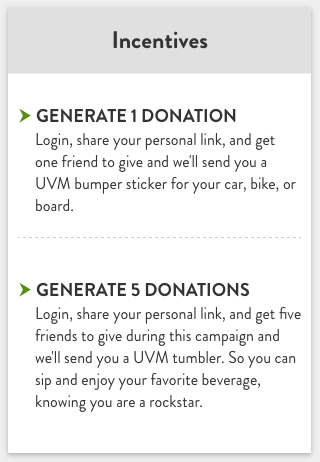
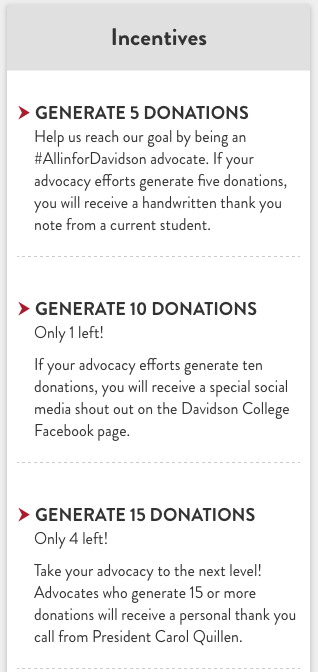
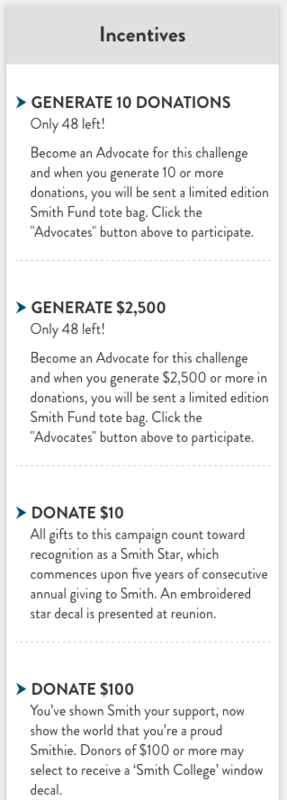
Donor Incentives:
Advocate Incentives:
Recurring Incentives:
FAQ — "Recurring Only" Incentives: What Does the "Minimum Length of Recurring Gift" Mean?
• The Recurring-Only option limits the incentive to donors who set up recurring gifts (monthly or yearly). • The Minimum Length of Recurring Gift is measured in years. This field specifies the minimum duration a donor’s recurring gift must cover at checkout for them to qualify.
For example:
• Setting the minimum length to 2 means the donor must commit to a recurring gift for at least 2 years—whether the payments are monthly or yearly. • Setting the minimum length to 1 qualifies any donor with at least a one-year recurring gift.
Additional details:
• To make the incentive available to all recurring donors, regardless of duration, set the minimum to 1. • To require an indefinite recurring gift (no end date), enter 99. • Since the minimum is in years, both monthly and yearly recurring gifts are compared by the number of years configured.
- GC Example, To Infinity & Beyond!
All of the Above:
FAQs:
Q: Can I reorder my Incentives?
A: After creating your Incentives, you can simply drag and drop them into the order you want from you campaign dashboard! While incentives can be reordered within themselves, they can not be moved above matches/challenges.
Q: If someone makes a recurring gift, will the incentive be triggered on the platform for the first installment only or the totality of the recurring gift amount?
A: The totality of the recurring gift amount. EX: There is an incentive unlocked at $100 and they give a $10/mo recurring gift - they would qualify for the incentive. You can also create exclusive incentives for donors who set up recurring gifts by checking the 'recurring-only' box.
Q: Can I schedule my incentives?
A: No. Incentives go live on your Campaign or Giving Form as soon as you create them.
Q: I made my incentive required, but on the form it isn't showing as required, why not?
A: The incentive field will only show as required with the red * after you enter a gift value that meets the minimum for the lowest incentive.
Managing Campaign Incentives: Editing and Troubleshooting
Editing Incentives
Before Any Claims Are Made
If NO donors have claimed an incentive yet, you have full editing flexibility:
- Delete the incentive completely
- Modify all details including:
- Description and title
- Qualifying criteria
- Quantity available
- Claiming requirements
After Claims Have Been Made
Once an incentive has been claimed by at least one donor, your editing options become limited:
What You CAN Still Change:- Increase quantity available (beyond what's already been claimed)
- Lock the incentive to prevent future claims
- Delete the incentive entirely
- Reduce quantity below the number already claimed
- Change core qualifying criteria that would invalidate existing claims
- Modify terms that would affect donors who already qualified
Troubleshooting Common Issues
Need to Remove a Claimed Incentive
If you need to remove an incentive that donors have already claimed:
1. Contact GiveCampus Support with he incentive name and campaign
Incentive Winner Reports with Mailing Addresses
Extracting Incentive Winners and Contact Information
To create reports that include incentive winners with their mailing addresses, use the custom report builder with these specific columns:
Required columns for incentive reporting:
-
incentive- Shows which incentive the donor selected -
fmv_of_incentive- Fair market value of the incentive -
donor_name- Winner's name -
payer_email- Winner's email address -
mail_address- Street address -
addr_city- City -
addr_state- State -
zipcode- ZIP code -
addr_country- Country -
phone- Contact phone number (if available)
Steps to create incentive winner reports:
- Navigate to Online Giving > Reporting > Custom Reports
- Click "Create New Report"
- Add the columns listed above to your report
- Set date range to your campaign period
- Add filters if needed (e.g., specific incentive types)
- Generate and download the report
Note: Mailing address data availability depends on what information donors provided during checkout and what data your school has imported through the Data Importer.
Using Filters for Specific Incentive Types
You can filter reports to show only specific incentives or exclude donors who declined incentives by adding appropriate filter conditions in the custom report builder.
Comments
0 comments
Article is closed for comments.