Registration Paths allow you, as an admin, to tailor the registration experience based on user selections. This enables you to display specific tickets, activities, and add-ons relevant only to certain affiliations, keeping the registration process streamlined and user-friendly.
Path Example Use Case: For a Reunion Weekend, you can offer tickets, activities, and add-ons exclusive to Faculty/Staff, Young Alumni, and Alumni General Admission.
Getting Started: Restricting Ticket Types
-
Create a Restricted Ticket Type:
Begin by selecting "Collect Affiliation Data" in the event settings' Details tab. This setting allows you to restrict ticket types based on affiliation (e.g., "Alumni") or a specific value (e.g., "Alumni 2014"). -
Choose Your Restriction Method:
-
Based Solely on the Registrant's Affiliation: Only the primary registrant needs to have the selected affiliation in order to view and register for the ticket type, both for themselves and their guests.
Note: Affiliation will be marked as required on the Registrant form. -
Based on Individual's Affiliation: Both the registrant and their guests must have the required affiliation to see/register for the ticket type.
Note: Affiliation will be required on both the Registrant and Guest forms.
-
Based Solely on the Registrant's Affiliation: Only the primary registrant needs to have the selected affiliation in order to view and register for the ticket type, both for themselves and their guests.

-
Restricted Acitivites:
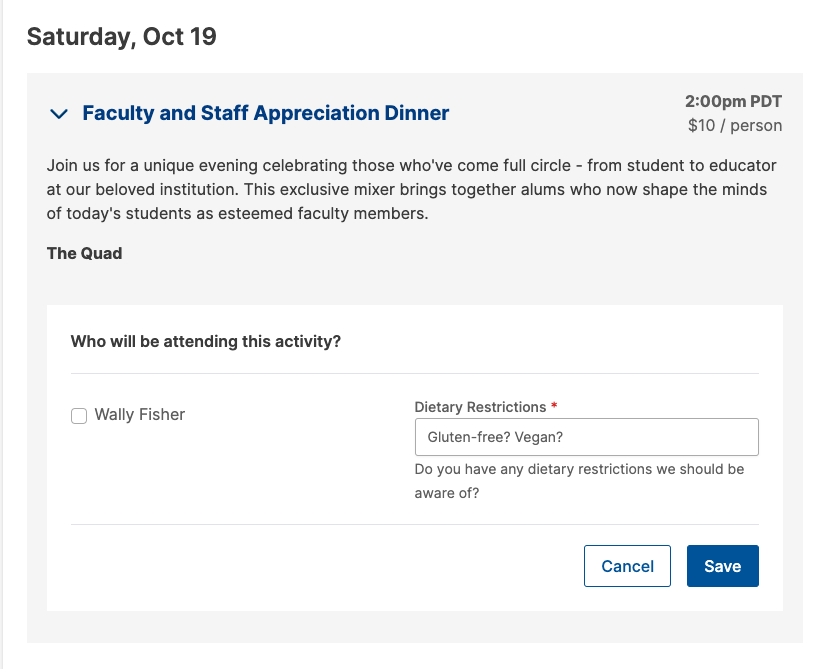
To create restricted activities, select "Restrict Activity Registration." This allows you to designate which registrants and guests can see these activities based on the ticket types selected during registration.
You can also ask activity-specific questions of registrants and guests by adding Custom Fields.
Note: You can establish Reusable Custom Fields within your Events Settings!

-
Restricted Add-ons:
Similarly, select "Restrict Add-on" to limit the visibility and purchase options for add-ons based on specific ticket types.
You can ask for relevant information by adding custom fields.



Questions? Check out these additional resources:
- Make a copy of this registration paths planning template!
- Check out our full October 2024 webinar with a live walkthrough of this feature!
FAQ — Why does a VIP activity still appear on the event listing even though registration is restricted?
-
Quick answer: Activities are always visible in the event's activities list regardless of ticket-type restrictions or audience tags. There is no option to hide an activity from view.
-
What the restriction does: The Restrict Activity Registration checkbox (in the Activity Restrictions section) controls who can register for an activity. Once enabled, it prevents ineligible registrants from signing up, although the activity remains visible. The checkbox label reads: "Restrict Activity Registration" with help text: "Restrict the ability to register for this activity to guests with the specified event ticket types below."
-
Audience Tags and activity visibility: The Audience Tags feature only adds affiliation labels for filtering purposes. It does not hide the activity from registrants. Use Audience Tags for schedule organization; use Restrict Activity Registration to limit access.
-
Recommended workflow for VIP-only activities:
- Create a ticket type for the VIP or invited group and configure it as a restricted ticket if needed.
- Open the activity’s edit screen by clicking the activity name from the event’s Activities section.
- In the Activity Restrictions section, check Restrict Activity Registration and select the VIP/invited ticket type.
- Indicate the activity’s exclusive nature in the title or description (for example, by including "By Invitation Only").
-
Existing registrations: If you add restrictions to an activity that already has registrants, the warning "[number] attendees are currently enrolled in this activity. This restriction will only apply to new registrations." appears. The restriction applies only to new enrollments.
-
Example: You have a dinner that should be visible to everyone but limited to trustees. Enable Restrict Activity Registration for the dinner, select the trustee ticket type, and include "By Invitation Only" in the title or description. Only attendees with the trustee ticket can register, even though all registrants see the dinner listed.
Comments
0 comments
Article is closed for comments.