Uploading designations is an easy way to create a large number of designations and/or designation groups. Below are various sections that will help you prepare to successfully validate and upload your designations and/or designation groups.
The sections within this article increase in complexity. If you're only looking to upload standalone designations, we recommend reading through the "Helpful tips while preparing your file", "How to Validate Your File", and "Uploading Designations" sections.
How to Prepare Your File
- Include all column headers in your file
- Even if you do not plan to use all columns, you must include all of the column headers. Not every column needs to have data in it, but all columns must be included in the file and no additional columns should be added.
- The column headers are:
- name
- backend_identifier
- write_in
- group
- program_priority
- group_name1
- group_name2
-
group_name3
-
description
Note: We recommend downloading the sample file on your designations page to work build on instead of starting from scratch.
- Upload files should be in a .CSV format. Other file types such as .XLSX will not upload.
- The uploader will automatically deduplicate. If all data within a row is the same as existing an existing designation/designation group, then it will not be processed.
How to Upload Individual Designations
Files must include all column headers, but only the ‘name’ column requires data. The ‘name’ column shows the designation name to donors on donation forms. Providing a `backend_identifier` is recommended for matching fund IDs in your CRM. Blank True/False fields (‘write_in’ or ‘group’) default to FALSE.
For example, this file creates 3 designations, each with a backend ID:

A file with blank ‘write_in’ and ‘group’ columns also creates 3 designations with backend IDs, as blanks default to FALSE:

How to Upload Designation Groups
You can upload both designations and designation groups via a .CSV file. Groups help organize designations for donors. To create a group, fill the ‘name’ field and set the ‘group’ column to TRUE (
accepted values: T, t, TRUE, True, yes, Yes, yes, 1
Note on the description column: Descriptions must be 255 characters or fewer. Any row with a description exceeding this limit will be skipped during processing, so review your descriptions before uploading.
). It's recommended to add a ‘Program Priority’ by listing a designation in the ‘program_priority’ column. This is where funds go if donors choose the group only. The referenced designation must be in the file or already created; it won’t be created just by listing it as a priority.To nest a designation under a group, add the group name in the designation’s ‘group_name1’ column.

In the example, two designations—“Annual Fund for Academics” and “Where It’s Needed Most (Academic Focus)”—and one group, “Academics,” are created. “Annual Fund for Academics” is the program priority for the group, so gifts to the group go there. However, it won’t appear as a designation within the group. “Where It’s Needed Most (Academic Focus)” will appear as a designation under “Academics.
How to Upload Tiered or Nested Designation Groups
Designations can be nested under groups, and groups can also be nested within other groups. For example, “College of Arts & Sciences” can contain sub-groups like “Department Funds” and “Endowed Scholarships,” each with their own designations.
To create multi-tier groups, use ‘group_name2’ and ‘group_name3’ along with ‘group_name1’, which is the top-tier group. The top-tier group name should be repeated for all nested groups or designations. For example:

NOTE: When uploading tiered groups, any values in “group_name1”, “group_name2”, or “group_name3” must be uploaded first or appear earlier in the file than the rows referencing them.
In the example above (download here), “Chemistry Department” is nested under “Departmental Funds,” which is under “College of Arts & Sciences.”
Adding both “Diversity Funds” and “College of Arts & Sciences” groups to a form creates a designation dropdown like this:

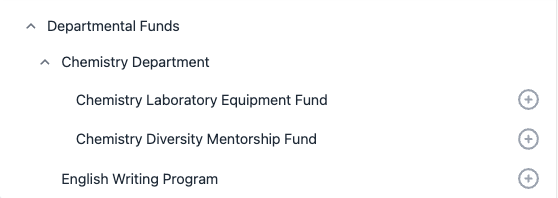
A fund like “Chemistry Diversity Mentorship Fund” can appear in multiple groups by listing it in separate rows with the same designation name and backend_identifier, but different group_name values. This does not create duplicates, just adds the fund to multiple groups.
Common Designation Group Errors
Make sure to add your Designation Group rows first
When building your file to upload, make sure you list your Designation Groups first, then the singles designations that fall into them after. In the example below, the first row “Scholarships” would create an error because the group hierarchy of “Academics” > “Chemistry” had not previously been established and is listed in rows AFTER the designation that uses it.

Only mark group as True for the Designation Group name, not a single designation
The file will be read row by row so the group column should only be marked as TRUE if the row lists the name of a designation group. If a single designation is a part of a designation group, it should be listed as FALSE since that designation is NOT a group.
How to Validate Your File
Before uploading designations and designation groups, you can validate your file to catch common errors like incorrect program priorities or missing column headers.
To validate, go to the Designations page on your school’s dashboard and click “Upload Designations.” On the preview page, select “Validate Upload” to check your file. If no errors appear, click “This looks good!” to proceed. Otherwise, choose “Something’s off. I need to try again.” to fix issues and revalidate.
Common error messages include:
- Incorrect headers: “The provided CSV headers are incorrect. Please use the headers of the downloadable sample file.”
- Missing "Name" field: “Row [#]: "name" must be populated.”
- Duplicate designation: “Row [#]: Designation "Sciences" already exists and will be skipped.”
- Repeated designation in file: “Row #: Designation "Example Designation" is in the upload multiple times. Original entry is on row #, and row # will be skipped.”
- Existing designation group: “Row [#]: Designation Group (name: "[Example Group]", group_name1: "[Example Group 2]") already exists and will be skipped.”
- Repeated designation group in file: “Row #: Designation Group (name: "[Example Group]", group_name1: "[Example Group 2]") is in the upload multiple times. Original entry is on row [#], and row [#] will be skipped.”
- Invalid program priority: “Row [#]: Program Priority "[Example Designation]" is not listed as a designation and does not exist. Group will be created without this priority.”
- Invalid group references: “Row [#]: The group (group_name1: "[Example Group]", group_name2: "[Example Group 2]", group_name3: "[Example Group 3]") doesn’t exist in your school or this file.”
-
Group reference order error: “Row [#]: The group (group_name1: "[Example Group]", group_name2: "[Example Group 2]") is on row [#], but must be listed before this row.”
See “Creating Tiered Groups” for more details. - Missing group_name dependencies: “Row [#]: "group_name1" and "group_name2" must be filled if "group_name3" is populated.”
Other Upload Options
GiveCampus offers a custom API that allows for designation data to be retrieved from GiveCampus into your CRM and allows for your CRM to send over new designations that are created at your school. Learn more about our API!
Adding Designation Groups to your Giving Forms and Campaign Forms
Got your Designation Groups uploaded and you’re ready to add them to a Giving Form or Campaign? Learn more about your options when adding Designations Groups to forms here.
If a row references a parent group that does not exist either in your school settings or elsewhere in the CSV, you’ll see an error stating the group does not exist.
Column dependency rules:
- If group_name2 is populated but group_name1 is blank, you’ll receive: "group_name1 must be populated if group_name2 is populated."
- If group_name3 is populated but group_name1 or group_name2 are blank, the error will be: "group_name1 and group_name2 must be populated if group_name3 is populated."
Q: How can I catch ordering and reference problems before the upload is processed?
A: Use the Validate Upload step. In your admin, navigate to Online Giving > School-Level Settings > Designations, click Upload Designations, select your CSV, and click Validate Upload. The validator will display row-level ordering and reference errors so you can correct the CSV before final upload.
Q: Any final tips to avoid common pitfalls?
- Always include every required header exactly as listed; any deviation causes validation failures.
- List all group rows (where group is TRUE) before rows that reference them.
- For hierarchies deeper than three levels, flatten the levels by combining or moving the extra level into the designation name. This keeps donor dropdowns tidy and avoids validator errors.
- If unsure, download and adapt the sample CSV from Online Giving > School-Level Settings > Designations, and use Validate Upload until no errors remain.
Comments
0 comments
Article is closed for comments.